Hello @wpcreative-jw  As discussed in our chat, I’m posting a complete step by step instructions, if needed in the future.
@Seyed My colleague and I gave you the steps in the other threads, but I wanted to tag you here as well.
Note: This applies to fixing the issues with site creation that are caused by database access error (in DevKinsta main.log, it’s → ERROR 1045 (28000): Access denied for user ‘root’@‘localhost’ (using password: YES) ).
Part ONE - RESETING ‘root’ USER PASSWORD
- Stop the devkinsta_db container

2. Once the container is stopped, open Terminal and run this command:
docker run --name devkinsta_reset_mariadb_root -v devkinsta_db_data:/var/lib/mysql/ -d mariadb:10.5.5 mysqld --skip-grant-tables
This should create a new container devkinsta_reset_mariadb_root.
3. In Docker Desktop, click on the new container ‘devkinsta_reset_mariadb_root’.
4. Choose ‘Exec’
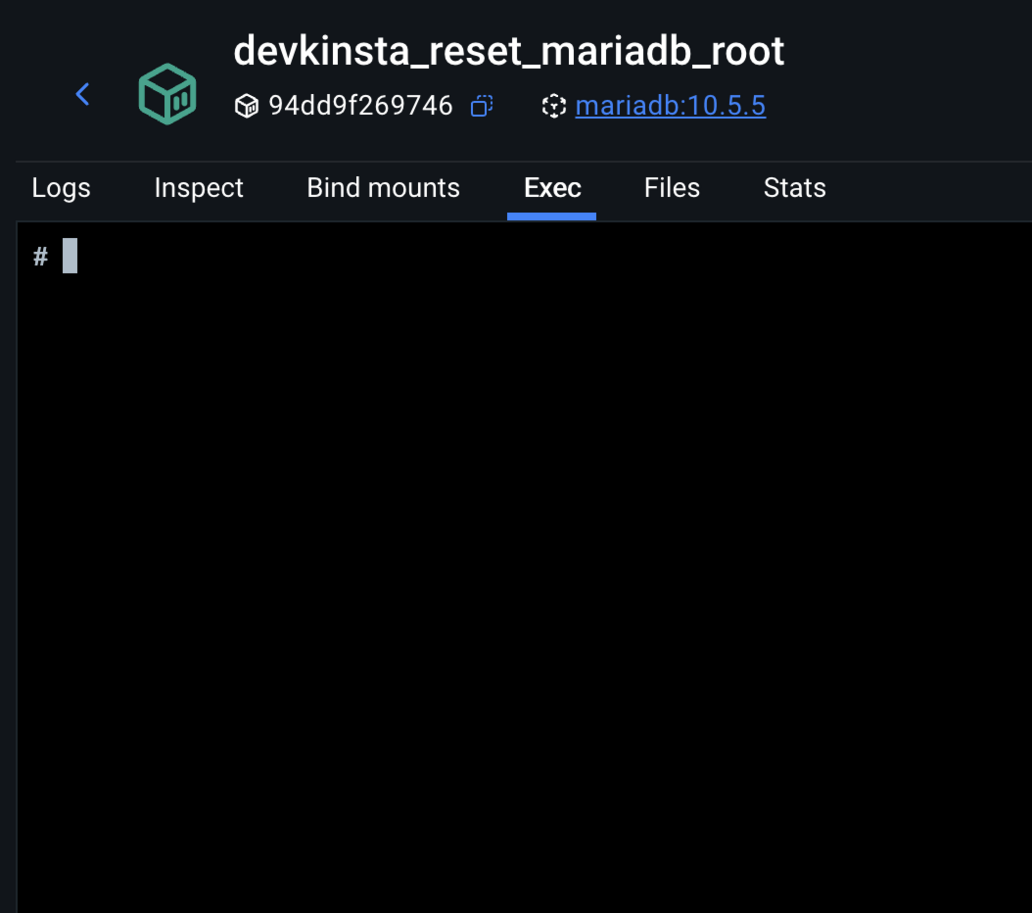
5. Run the following command: mysql -u root -p. It will prompt you for a password but just press Enter.
6. Run the following commands one by one:
USE mysql;
FLUSH PRIVILEGES;
ALTER USER 'root'@'localhost' IDENTIFIED BY 'ENTER_THE_NEW_PASS_HERE';
FLUSH PRIVILEGES;
Replace ENTER_THE_NEW_PASS_HERE with a password of your choosing and remember it/copy it for later use.
The above steps are resetting the passwrod for ‘root’ user.
-
Switch back to Terminal. Delete the temporary Docker container by running the following in Terminal:
docker rm devkinsta_reset_mariadb_root -f -
Start the original devkinsta_db container in Docker
At this point, the database error should be gone, but if it isn’t, complete the next set of steps as well.
Part two - GRANTING PRIVILEGES TO ‘root’ USER
Please execute the following commands from the Terminal one by one:
1. docker exec -it devkinsta_db bash
2. mysql -u root -p
(enter the password you created in previous set of steps)
3. GRANT ALL PRIVILEGES ON *.* TO ‘root’@‘%’ IDENTIFIED BY ‘the password you created’ WITH GRANT OPTION;
4. exit
5. exit
Part three - **UPDATING DevKinsta config.json
**
If you completed both sets of steps above and there was no change and the issue persists, you will need to check the password in config.json file.
Go to Finder → Go → Library → Application Support → DevKinsta. (If you don’t have ‘Library’ in Go (top bar), go to Finder, control-click anywhere in the directory and in Show View Options select “Show Library Folder”)
Once you are in DevKinsta directory, find config.json. Open it in any text editor that has ‘search’ feature. Search for ‘services’ and you should see a code like this:
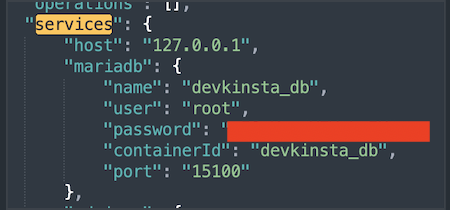
Update that to a password that you have set in the first set of commands.
This should resolve the issue and allow both new site creation and pulling sites from Mykinsta.
Kind regards!