This should open your localhost adminer. Let me know if you are logged in (you probably won’t be). If you aren’t try to login with the password you obtained from the steps above and let me know what error do you get.
First, I would like to say that I apologize for the delayed reply. We don’t provide real-time support in the forum, but we have less coverage for personnel that handles these threads this week.
In regards to the issue, it is as I feared. It’s not just the password it’s permissions. You need to alter permissions for your rot user to have access with any localhost IP used.
This should resolve the issue:
GRANTING PRIVILEGES TO ‘root’ USER
Please execute the following commands from the Terminal/Command line one by one:
1. docker exec -it devkinsta_db bash
2. mysql -u root -p
(enter the password you found in previous steps in devkinsta_db inspect)
3. GRANT ALL PRIVILEGES ON *.* TO ‘root’@‘%’ IDENTIFIED BY ‘the password you created’ WITH GRANT OPTION;
4. exit
5. exit
Try logging in to http://127.0.0.1:15200/. If you don’t get errors than it means the issue was resolved. Try creating a new site and it should be ready to go (without the WP install process).
@VladimirM thank you for these detailed replies – I know the community forum is spread thin, but I wanted to acknowledge that the combination of this and a previous comment resolved our inability to create and use sites in DevKinsta.
Essentially, we followed your instructions from these two comments:
I’m sorry to hear that you’re still experiencing issues. This sounds like the steps weren’t done in the correct order or that another issue simply interferred. I’m sorry to say that that can happen. I personally, had to redo the following steps 3 times to get it to work.
The article I’m sharing now is a complete guide into resolving the issue.
I understand it’s a lengthy process, but please take your time to do all steps from the top and let me know if it works. If it doesn’t, please provide your main.log so I can recheck it.
Yes, that shows that the permissions aren’t correctly set for ‘localhost’ and tables aren’t being created. You shouldn’t try to complete the setup since it’s not going to work.
Can you please take a screenshot of your containers in Docker Desktop? Like this:
That looks correct. Please click to stop devkinsta_db.
Then go to terminal and repeat the steps:
docker run --name devkinsta_reset_mariadb_root -v devkinsta_db_data:/var/lib/mysql/ -d mariadb:10.5.5 mysqld --skip-grant-tables
Go back to docker desktop and stop devkinsta_db.
Make sure that new container devkinsta_reset_mariadb_root is running.
Click on devkinsta_reset_mariadb_root and go to ‘Exec’.
Run the following command: mysql -u root -p. It will prompt you for a password but just press Enter.
Run the following commands one by one:
(Replace ENTER_THE_NEW_PASS_HERE with a password of your choosing and remember it/copy it for later use.) USE mysql; FLUSH PRIVILEGES; ALTER USER 'root'@'localhost' IDENTIFIED BY 'ENTER_THE_NEW_PASS_HERE'; FLUSH PRIVILEGES;
If you are able to get to this step, please continue with the rest of the steps as per the article I shared.
It’s sad to think that this process has been so repetitive, over and over again - that I’m beginning to feel that this DevKinsta app does not like me or my computers. I would really like to use this tool especially since I’m a Kinsta customer.
I would like to try this one more time. However, my son who is familiar with databases has offered his assistance to overcome my lack of technical skills to implement this correctly. Could you lay out from the top what he has to do to correct this issue once and for all. Please advise if you require anything else on my end. Thank you so much.


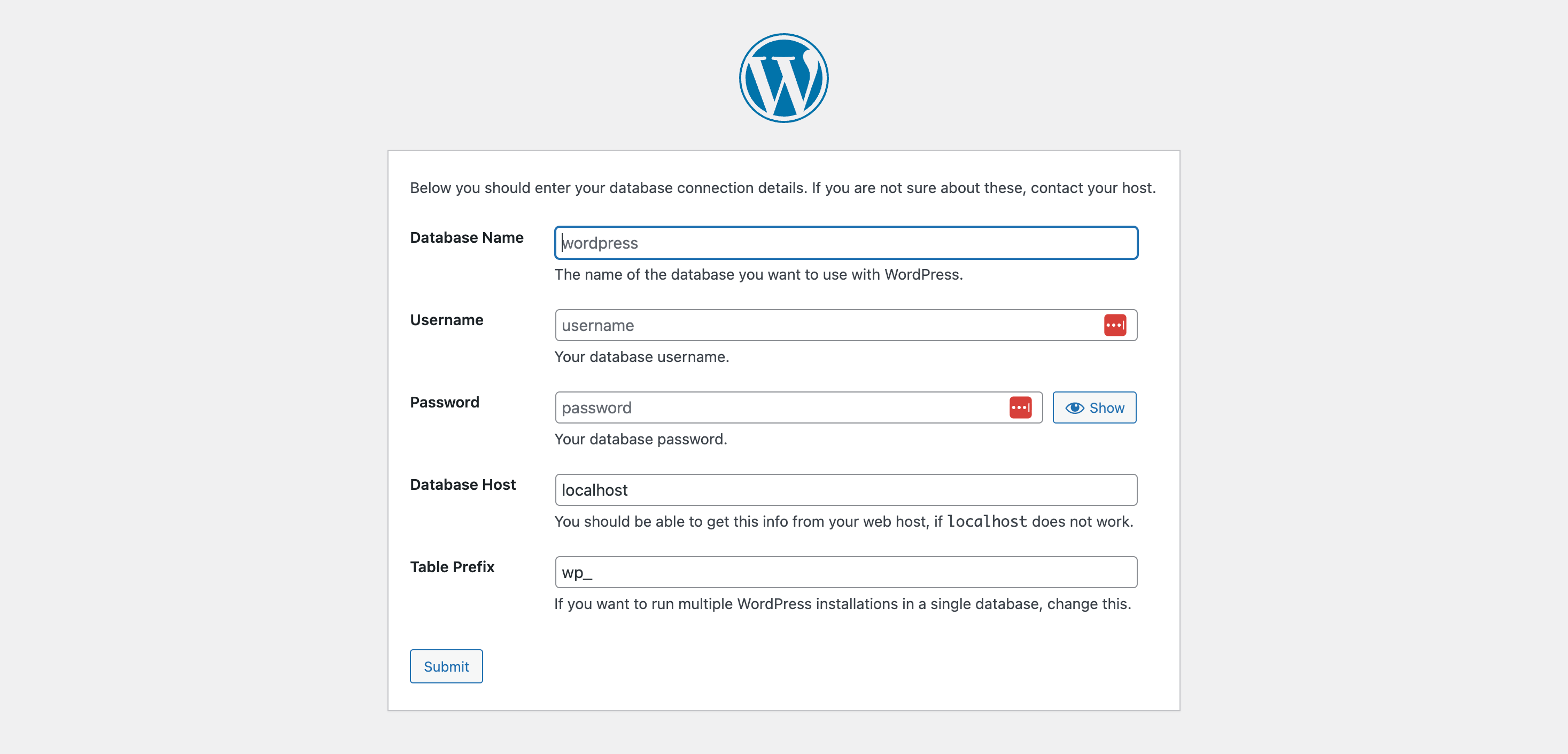


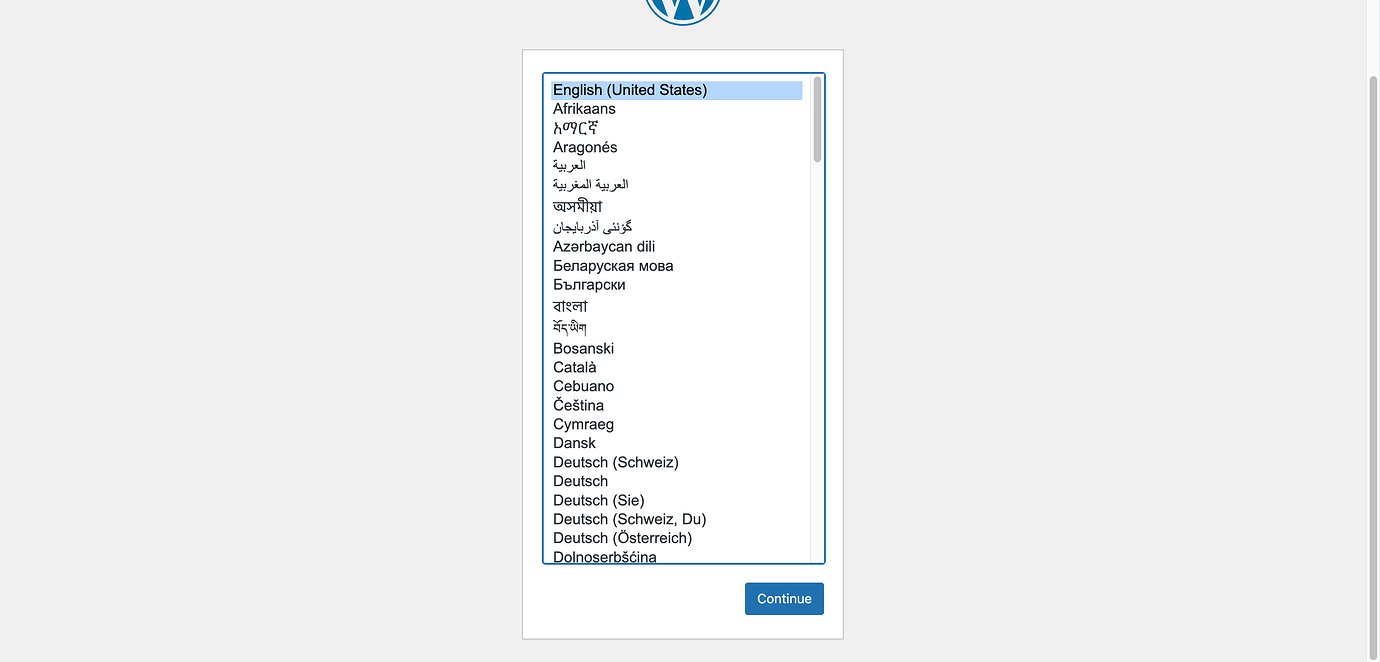


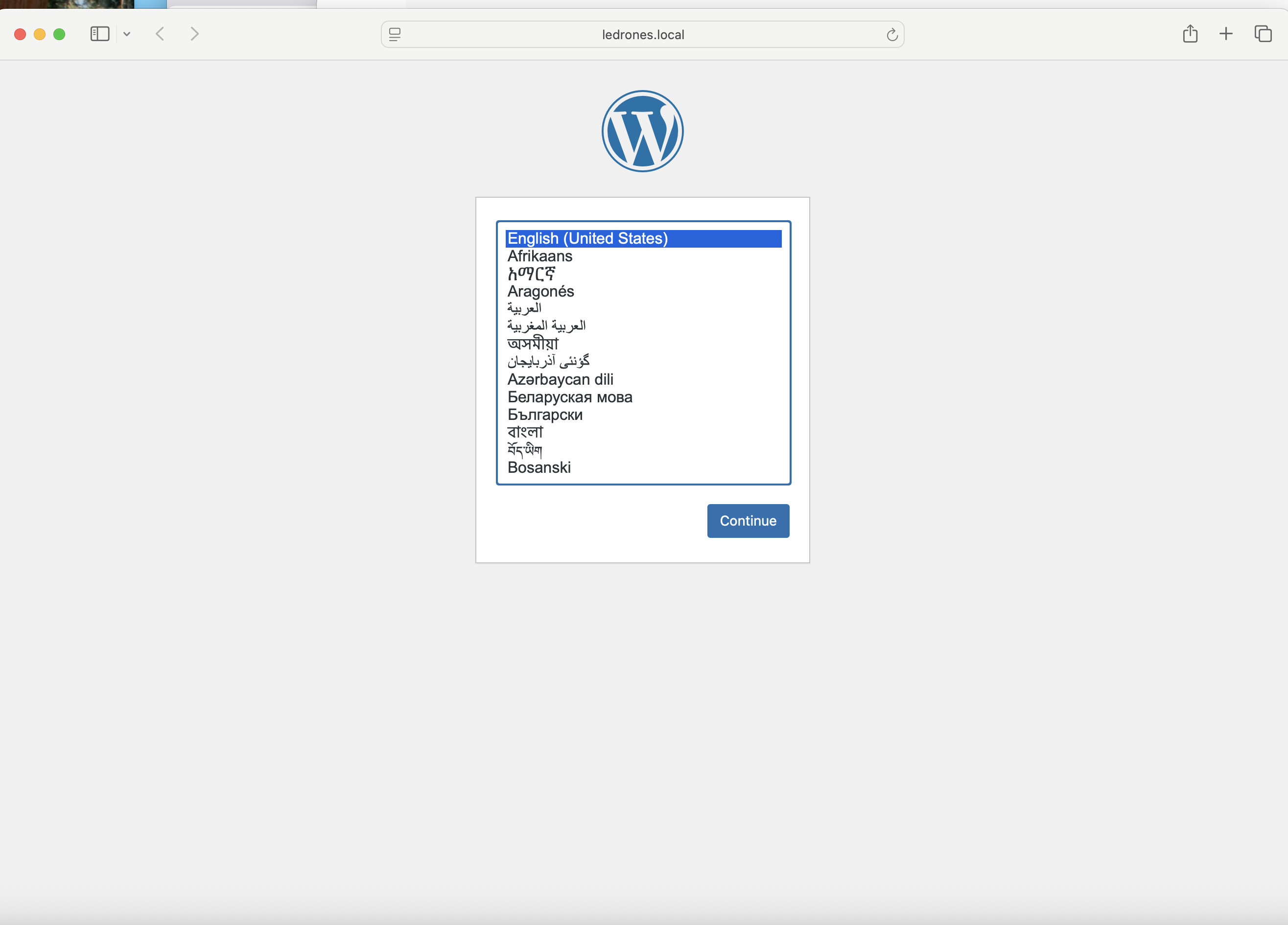


 through DevKinsta. What information goes above


